Integrate OpenClaw with Feishu via Alibaba Cloud AppFlow: Build Your Enterprise AI Assistant
Integrate OpenClaw with Feishu via Alibaba Cloud AppFlow. Enable natural language AI interaction in Feishu chats. Step-by-step 30-minute guide to build your enterprise AI assistant.

Integrate OpenClaw with Feishu via Alibaba Cloud AppFlow: Build Your Enterprise AI Assistant
Using Alibaba Cloud AppFlow (Application Connector), you can integrate OpenClaw services with Feishu (Lark), enabling natural language interactions with OpenClaw directly in Feishu group chats or direct messages. This provides enterprises with a powerful AI assistant solution capable of delivering intelligent Q&A, task execution, and more in daily office scenarios.
What is OpenClaw?
OpenClaw (formerly Clawdbot/Moltbot) is an open-source AI assistant system supporting multi-platform deployment and integration. Its core advantages include:
- 🧠 Long-term Memory: Locally stores conversation data, remembering enterprise preferences and history
- ⚡ Task Execution: Not just for chatting - it actually executes tasks (file organization, data queries, code writing)
- 📱 Multi-platform Integration: Supports Feishu, Discord, WhatsApp, and other platforms
- 🔒 Privacy Control: Data completely under enterprise control
- 💰 Low Cost: One lightweight cloud server sufficient for 24/7 operation
Naming Note: This project was originally named Clawdbot, then renamed to Moltbot, and is now officially called OpenClaw. “OpenClaw” in this document refers to the latest version.
Integration Architecture
This guide will walk you through integrating OpenClaw with Feishu in the following steps:
Alibaba Cloud Lightweight Server (OpenClaw)
    ↓ ResponseAPI
Alibaba Cloud AppFlow (Connection Flow)
    ↓ Webhook
Feishu Enterprise App (Bot)
    ↓ Message Interaction
Enterprise Employees (Group Chat/DM)
Step 1: Purchase OpenClaw Package
Important Notice
If you already have a Lightweight Application Server, you can skip this step and deploy OpenClaw by resetting the system (select the OpenClaw image under Application Images when resetting). However, resetting the system will clear all data on the system disk of the Lightweight Application Server. Please back up your data as needed. For details, refer to Reset System.
1. Purchase Lightweight Application Server with OpenClaw Pre-installed
👉 Click to Purchase Lightweight Application Server with OpenClaw
This application image is based on Alibaba Cloud Linux 3.2104 LTS 64-bit operating system, sourced from Alibaba Cloud Computing Nest.
2. Configuration Guide
On the Lightweight Application Server page, resource configurations are preset. If you need to change configuration items, refer to the following:
-
Instance: Memory must be 2GiB or higher; you can switch packages according to your needs
-
Region: Default US (Virginia)
Currently, Lightweight Application Servers in mainland China regions (except Hong Kong) have restricted web search capabilities.
-
Purchase Configuration: Default 12 months; you can switch duration according to your needs
3. Alibaba Cloud Free Trial
If you’re a new Alibaba Cloud user, you can claim free trial credits first:
👉 Claim Alibaba Cloud Free Trial
Step 2: Configure OpenClaw
1. Get Bailian API Key
Visit Alibaba Cloud Bailian Large Model Service Platform and go to API Key Management, then click Create API-Key.
Warning: Please keep your Bailian API-Key secure. If leaked, third parties may impersonate your identity for malicious use, incurring unexpected token costs.
2. Access Server Management Page
On the Servers page, click the instance ID in the server card to enter the Server Overview page.
3. Configure OpenClaw Application
Click the Application Details tab to configure OpenClaw.
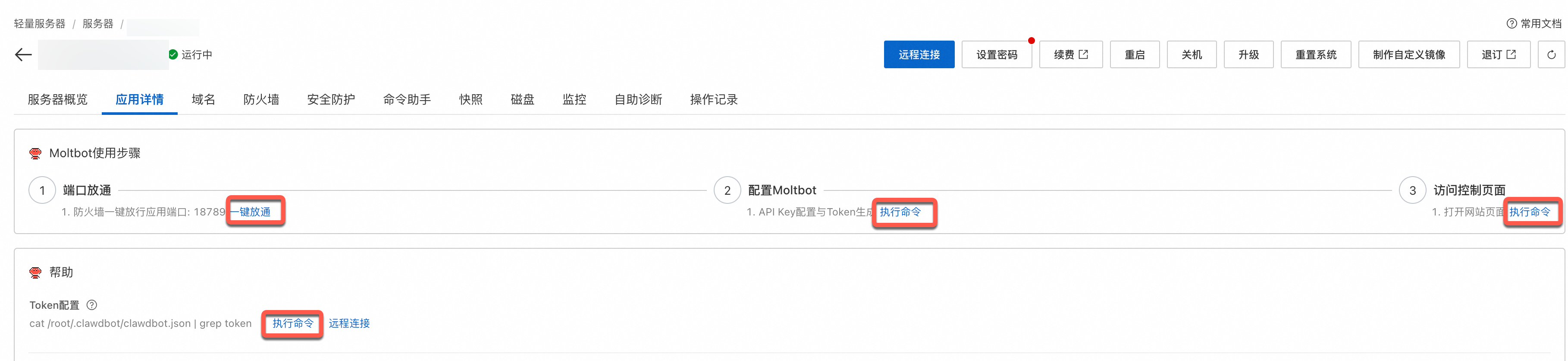
Configuration steps:
- Port Opening: You need to open the corresponding port firewall; click One-click Open
- Configure OpenClaw: Click Execute Command, enter your Bailian API Key, click Next
- Access Control Page: Click Execute Command to get the OpenClaw conversation URL
4. View Token
In Help > Token Configuration, click Execute Command to get the Token.
Warning: Do not leak the complete URL containing Token. This link contains your authentication credentials, and anyone holding this link can directly bypass login verification and gain administrator privileges to your OpenClaw console.
5. Enable ResponseAPI Access
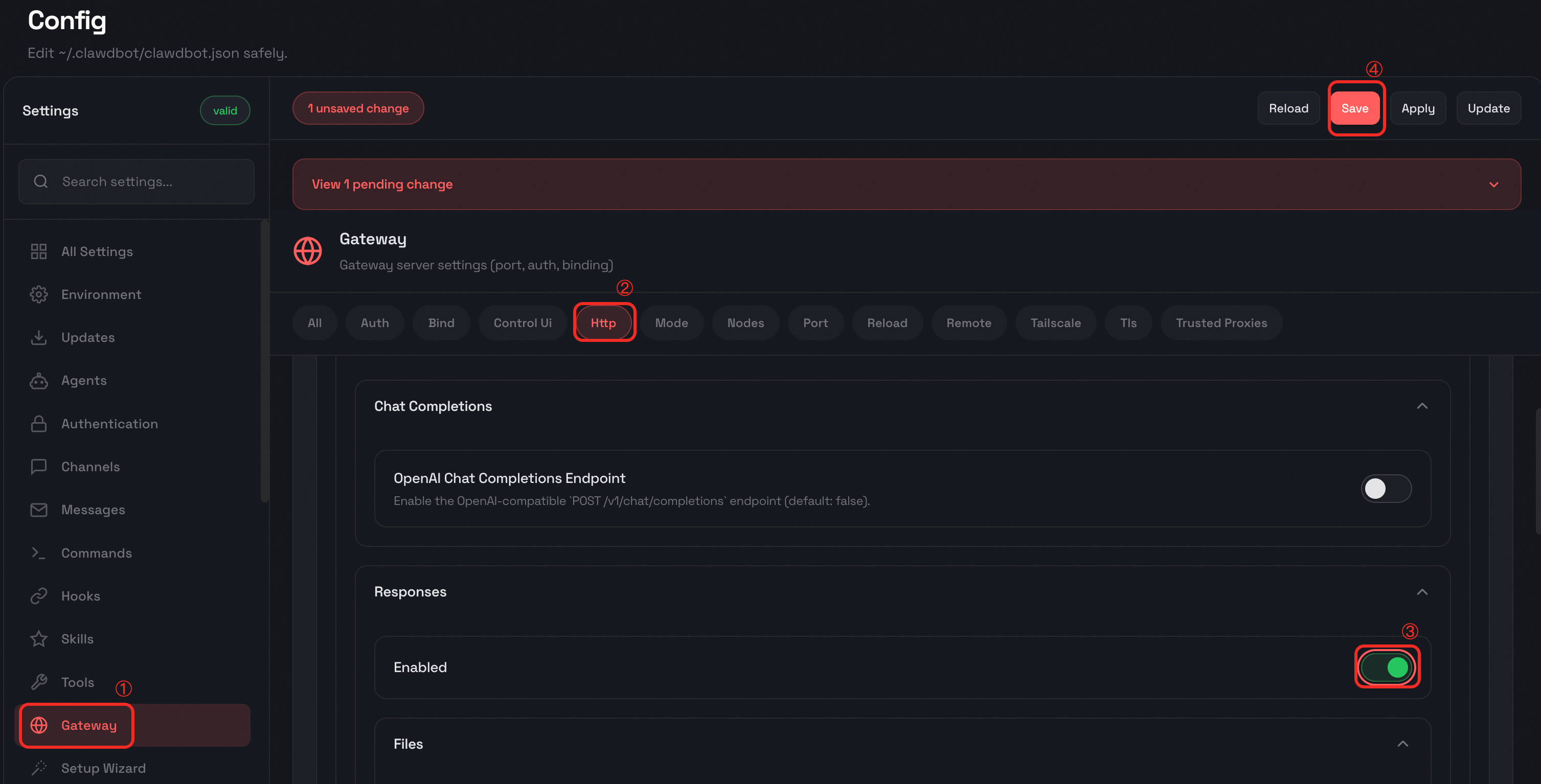
AppFlow will access OpenClaw via API later, so you need to enable ResponseAPI:
- In the left navigation bar of the OpenClaw page, click Setting > Config
- In the Config page left navigation, click Gateway, switch to the Http tab
- In the Responses area, toggle Enabled to on, then click Save
Step 3: Create and Configure Feishu Application
1. Create Feishu Enterprise Self-built Application
Log in to Feishu Developer Console, click Create Enterprise Self-built Application, fill in the application information, and click Create.
2. Add Bot Capability
In the left navigation bar, click Add Application Capability, select the Add by Capability tab, find the Bot card, and click Add.
3. Configure API Permissions
In the left navigation bar, click Permission Management, click to enable permissions, search for and add the following API permissions:
| Permission Code | Purpose | Notes |
|---|---|---|
im:message:send_as_bot | Allows bot to send messages as application | Required permission |
contact:user.employee_id:readonly | Get user user ID | Required permission |
im:message.group_at_msg:readonly | Allows bot to receive messages where it’s @mentioned in group chats | Core interaction permission |
im:message.p2p_msg:readonly | Allows bot to read messages sent to it privately by users | Required for DM scenarios |
im:message.group_msg | Allows bot to get all messages in groups it’s in | Sensitive permission |
4. Collect Integration Credentials
You’ll need this information when configuring the AppFlow connection later:
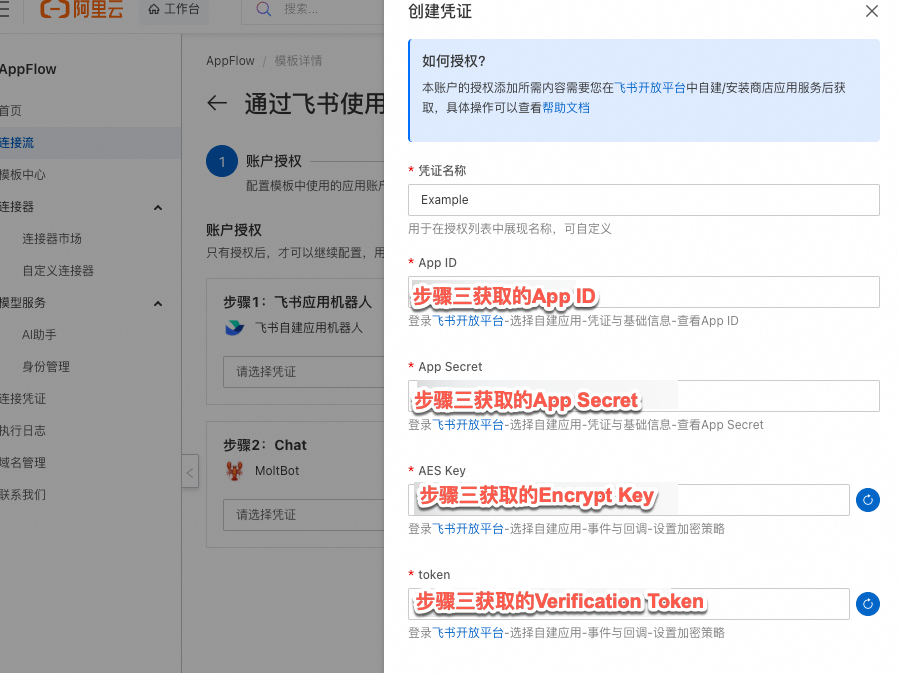
- App ID and App Secret: Go to Credentials & Basic Information in the left navigation to view and copy
- Encrypt Key and Verification Token: Go to Events & Callback in the left navigation, find the Encryption Strategy tab. Copy both credentials
If the current Encrypt Key is empty, you can click the reset button to generate a new Encrypt Key.
Step 4: Create Feishu Connection Flow
1. Visit AppFlow Template
👉 Visit AppFlow Template Center - Feishu-OpenClaw Template
Click Use Now.
2. Add Feishu Authentication Credential
Click to add Feishu authentication credential, fill in the credential name, and fill in the information obtained in Step 3 with reference to the image below. After filling in, click Confirm and select the created credential in the dropdown.
3. Create OpenClaw Authentication Credential
Fill in the credentials obtained in Step 2. After filling in, click Confirm and select the created credential in the dropdown.
4. Configure Server Address
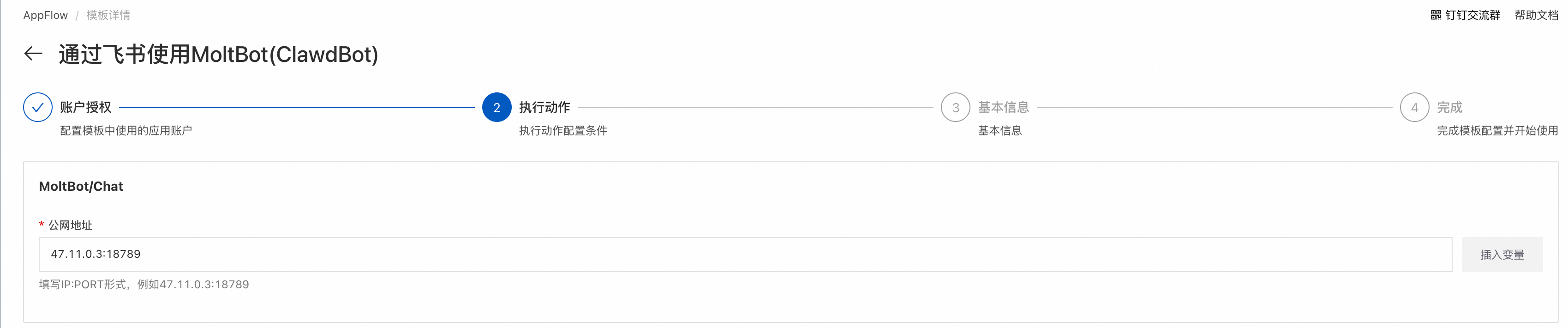
Click Next, go to the server details page to get the server public address and fill in Your Public IP:Port Number according to the page prompts. The port number defaults to 18789.
5. Publish and Save WebhookUrl
After configuration is complete, click Publish, copy and save your WebhookUrl.

Step 5: Configure Feishu Bot Callback
1. Configure Subscription Method
Return to Feishu Developer Console, click Events & Callback in the left navigation bar, and on the Event Configuration tab, click the button to configure Subscription Method.
2. Set Callback URL
Select Send events to developer server, fill in the WebhookUrl copied in the previous step, and click Save.
3. Add Event Subscription
In the Added Events area of the Event Configuration tab, click Add Event, search for and add the Receive Message event.
4. Publish Application Version
After completion, click Version Management & Release in the left navigation bar, create a version or click the latest edited version, fill in the relevant information, save and submit for approval.
Solution Verification
After configuration is complete, users can add the bot to a group to enable interaction between the bot and group members.
Currently, only adding bots on Feishu desktop is supported. For using bots in external groups, refer to the configuration document Bot Support for External Groups and External User DMs.
Add Bot to Group Chat
- Add bot following the path: ··· > Settings > Group Bots > Add Bot
- @mention the bot to send messages and start chatting
Use Cases and Advantages
Enterprise Collaboration Scenarios
Through the integration of OpenClaw and Feishu, enterprises can achieve the following application scenarios:
- Intelligent Q&A: Employees can @mention the bot in group chats to quickly get enterprise knowledge base answers
- Task Execution: Complete data queries, report generation, and other tasks through natural language commands
- Meeting Assistant: Automatically record meeting minutes and extract action items
- Code Assistant: Assist developers in code review and problem diagnosis
Solution Advantages
Compared to traditional enterprise AI solutions, this solution has the following advantages:
- Low Cost Deployment: One lightweight application server is sufficient
- Data Security: All data stored on your own server
- Easy to Extend: Supports custom skills and tool integration
- Seamless Integration: Deeply integrated with Feishu workflow
Cost Analysis
Server Cost
- Lightweight Application Server: Approximately ¥60-120/month (depending on configuration)
- Bandwidth: Included in the package
AI Model Cost
- Alibaba Cloud Bailian: Pay per actual token usage
- Estimated Cost: Approximately ¥50-200/month for daily enterprise use
Total Cost
Compared to building an in-house AI team (tens of thousands of yuan per month), this solution costs less than a thousand yuan total, offering exceptional value.
FAQ
Q1: What’s the relationship between OpenClaw, Clawdbot, and Moltbot?
OpenClaw is the latest name of this project. The project was originally named Clawdbot, later renamed to Moltbot, and is now officially named OpenClaw. All three names refer to the same project.
Q2: How to ensure data security?
All OpenClaw data is stored on your Alibaba Cloud server, and you have complete control over data access permissions. Communication between Feishu and OpenClaw is encrypted via AppFlow.
Q3: Which AI models are supported?
OpenClaw supports multiple AI model providers, including Alibaba Cloud Bailian, Moonshot AI, MiniMax, etc. You can switch models as needed.
Q4: How to implement more custom features?
OpenClaw supports custom skill development. You can refer to the official documentation to learn how to develop exclusive features: OpenClaw Official Documentation
Advanced Configuration
Configure Enterprise Knowledge Base
With OpenClaw’s knowledge base feature, you can upload enterprise documents to let the AI assistant answer based on enterprise-specific knowledge:
- Enter the Knowledge module in the OpenClaw console
- Upload documents in PDF, Word, Markdown, and other formats
- The knowledge base will automatically index and support semantic search
Integrate Enterprise Toolchain
OpenClaw supports integration with various enterprise tools:
- GitLab/GitHub: Code repository management
- Jira/Tapd: Project management
- Confluence: Documentation collaboration
- Enterprise Email: Email processing
Set Up Multi-tenant Support
If you need to provide separate AI assistants for different departments or teams:
- Create multiple user spaces in OpenClaw
- Configure independent skills and knowledge base for each space
- Create multiple applications in Feishu, each connecting to a different OpenClaw space
Monitoring and Maintenance
View Logs
You can view detailed running logs in the OpenClaw console:
# View Gateway logs
clawdbot logs gateway

# View system logs
clawdbot logs system
Performance Optimization
It’s recommended to adjust the following parameters based on actual usage:
- Concurrent Connections: Adjust according to enterprise scale
- Cache Strategy: Configure caching for frequently asked questions
- Rate Limiting: Prevent API abuse
Regular Backup
It’s recommended to configure a regular backup strategy:
# Backup configuration files
clawdbot backup create

# Restore configuration
clawdbot backup restore <backup-id>
Summary
By integrating OpenClaw with Feishu via Alibaba Cloud AppFlow, enterprises can quickly deploy a powerful, secure, and low-cost AI assistant system. The entire configuration process takes only 30 minutes and requires no complex development work.
Start your enterprise AI assistant journey now! 🚀
Related Reading:
- Deploy OpenClaw AI Assistant on Tencent Cloud in 30 Minutes
- Missed Clawdbot? Build Your 24/7 AI Assistant in 30 Minutes
- Alibaba Cloud ECS vs Tencent Cloud CVM: Cloud Server Comparison
Recommended Resources: